Hi everyone!
I created this tool because I needed a way to version files. I use Renoise in a slightly unusual way:
I play live sets using MIDI controllers, and after every session I had to manually add a version number to the module’s filename.
So I started with a simple tool that added a counter to the filename. But I soon found myself needing more features, such as renaming and deleting files, and eventually backing up files - including to a network drive. That’s how a small tool grew into a fairly advanced file manager, not just for XRNX files, but also for EXE, JPG, TXT, ZIP, and more, with support for adding files and paths to Favorites.
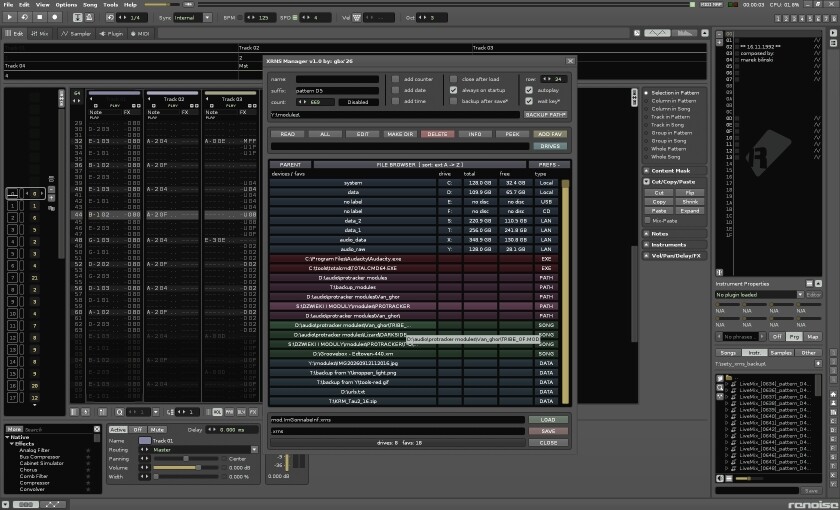
Compatible with Renoise 3.4.4 on Windows 7 and Renoise 3.5.4 on Windows 10.
Renoise 3.5.4 allows for a much better-looking GUI, but compatibility with Windows 7 and Renoise 3.4.4 was important to me, because that’s the setup I use to create my live set.
It would all be too good to be true if it weren’t for one thing: most operations are performed using system commands, which means a CMD window briefly flashes on screen during various operations. I’ve got used to it by now. It’s not particularly annoying.
… As they say, something always has to be not quite the way you’d like it. The important thing is that it works. 
XRNS Manager for Renoise 3.4.4 / 3.5.4 - Features
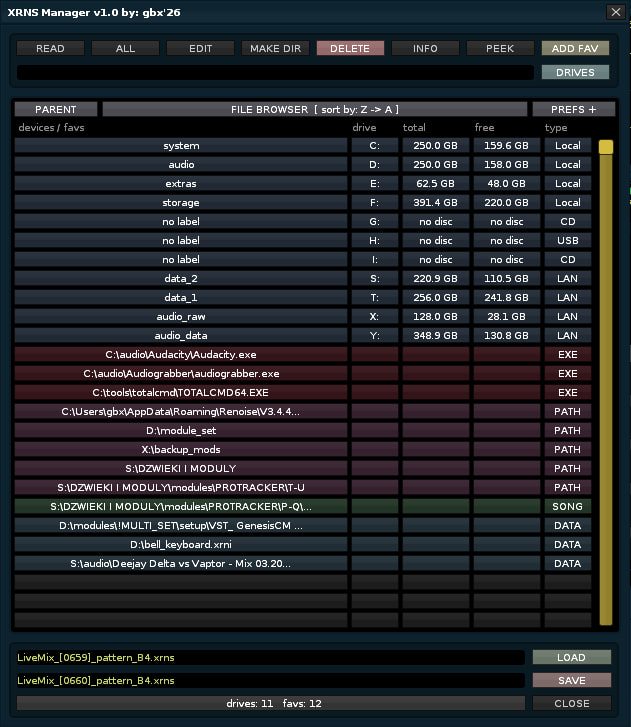
PREFS (settings panel)
name
Filename prefix used when saving. The base for building the full filename.
If no version marker (counter/date/time) is enabled, the name of the
currently loaded song is used instead of the prefix.
suffix
Optional text appended to the filename, before the .xrns extension.
Active only when at least one version marker is enabled.
count
Four-digit counter (0001, 0002…) inserted into the filename.
Automatically incremented after each save.
add counter
Enables adding the [0001] counter to the filename.
add date
Enables adding the date [YY.MM.DD] to the filename.
add time
Enables adding the time [HH.MM.SS] to the filename.
enabled / disabled
If any checkbox (counter, date, time) is checked, the status shows:
enabled
Example output file name:
MySong_0042_26.10.10_final.xrns
close after load
Closes the manager window after loading a file (xrns, mod, xm, etc.).
always on startup
Automatically opens the manager every time Renoise starts.
autoplay
Automatically starts playback after loading a file.
backup after save *
After each save, backs up the working folder to the backup folder.
Uses robocopy in a separate CMD window and copies only new or changed
files.
wait key *
When the backup is complete, the CMD window waits for a key press
instead of closing automatically after 5 seconds.
backup path *
Destination path for backups. Set using the folder selection button.
(* The backup fields are linked - backup path must be set.)
rows
Number of rows visible in the file browser (range: 6–32).
Changes require reopening the manager window
(for example, by clicking the [PREFS-/+] button).
TOOLS
READ
Refreshes the file list in the current directory.
ALL
Selects all files in the list.
RENAME/EDIT
Rename - Renames the selected file or directory.
Edit - Allows you to manually edit an entry in Favorites.
(Edit is available only on the start screen [drives].)
MAKE DIR
Creates a new directory in the current folder.
DELETE
Deletes the selected file/directory, or all files when the list is
selected using ALL. Confirmation is required.
INFO
Displays detailed information about the selected file: full path,
size, and modification date. (Native Windows functionality.)
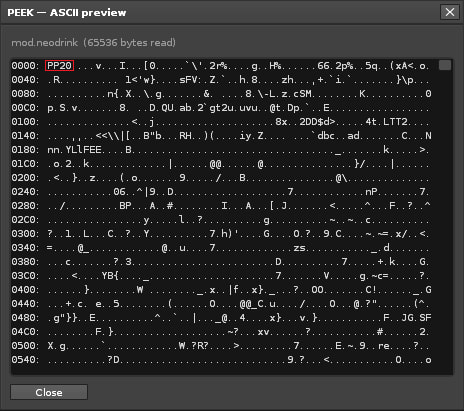
PEEK
Displays a binary file’s contents in ASCII. Reads the first 64 KB
and displays it as text. Each line is prefixed with a hexadecimal
address (0000:, 0040:…).
Useful when, for example, a *.mod file is rejected by Renoise. You
can inspect its header to check whether a packer was used. If the
file starts with PP20 (PowerPacker) or CRM! (CrunchMania), the module
is not corrupted - it has been packed with an Amiga packer.
ADD FAV
Adds the selected file or path to Favorites.
Favorites are shown on the start screen (DRIVES).
Any file type can be added to Favorites: EXE, XRNS, JPG, TXT, ZIP, etc.
DRIVES
Returns to the start screen with the list of drives and Favorites.
FILE BROWSER
PARENT
Navigates to the parent directory.
FILE BROWSER [sort: …]
The file browser’s title-bar button. Clicking it cycles through six
sorting modes:
A->Z, Z->A
oldest/newest first
smallest/largest first
extension A->Z, Z->A
The selected mode is remembered between sessions.
The button is disabled while file sizes are being scanned.
PREFS+ / PREFS-
Expands and collapses the preferences panel.
Its state (open/closed) is remembered.
FILE ACTIONS
LOAD
Loads the selected song module into Renoise.
SAVE
Saves the current Renoise song. If at least one version marker
(counter/date/time) is enabled, the file is saved to the configured
folder using an automatically generated filename. The counter is
incremented.
CLOSE
Closes the manager window.
DOUBLE-CLICK - OPENING FILES
The manager identifies the file type and opens it accordingly:
XRNS - Loads the song into Renoise. (Likewise XM, IT, etc.)
XRNI - Loads an instrument into the selected slot (VSTi instruments
are supported too, so you can create a list of favorite VSTs
and load them easily this way).
MOD - Loads a ProTracker / NoiseTracker module. The manager recognizes
Amiga-style filenames with prefixes (mod.party-question,
mod.hardcore-theme). The file is temporarily copied with a .mod
extension so Renoise can identify it.

MIDI - If MIDI files are associated with Renoise on your system, the
file is loaded into Renoise. Otherwise, it opens in the default
Windows player.
EXE, JPG, TXT, MP3, ZIP, and other files - Open in the default Windows
application associated with that file type.
FAVORITES - COLOR GROUPS
Favorites on the start screen are visually grouped by type:
red - executable files [EXE]
purple - paths / folders [PATH]
green - Renoise files (XRNS, XM, MOD…) [SONG]
blue - other files [DATA]
LONG FILENAMES
If a filename doesn’t fit in the list column, it is truncated with
an ellipsis (…). Hovering over it displays a tooltip with the full name.
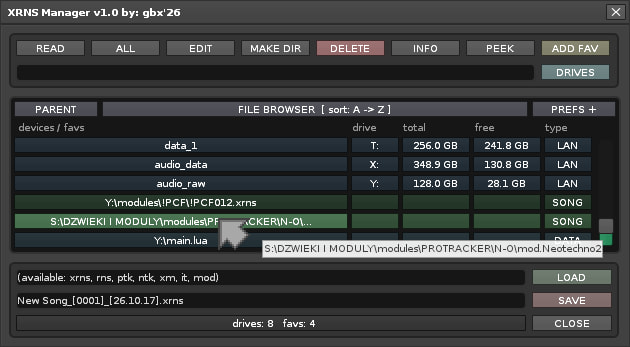
STATUS BAR
Displays contextual information: save/load status, the number of files
and directories in the current folder, and the number of drives and
Favorites on the start screen.
NETWORK DRIVES
The manager supports network drives (LAN/NAS). Each time the tool starts,
it runs the “net use” command once to mount or wake lazy-mounted network
shares, making the drives immediately visible in the file browser. If
the network drives are already available, the command is skipped.
SHORTCUT
In Renoise Preferences, under Keys, search for
“Open XRNS Manager” to assign a keyboard shortcut to open it.
KNOWN ISSUES
Files whose names start with a space or contain special characters
(ę, ą, ü, ö, etc.) do not display their size, cannot be opened by
double-clicking, and attempting to launch them returns a system error.
This is not a critical issue.
DOWNLOAD XRNX:
com.groovebox.XRNS-Manager.xrnx (17.6 KB)
Best regards to all you tracker fans!
Check out my other tools and games:
tool: stopwatch (3.4.4) Stopwatch v1.0 for Renoise
tool: custom cursors (3.4.4) CustomCursors v1.02 for Renoise (Win, Linux, MAC)
game: twintris (3.5.4) TwinTris v1.03 for Renoise