New Tool (3.1): ArpGun

ArpGun for Renoise

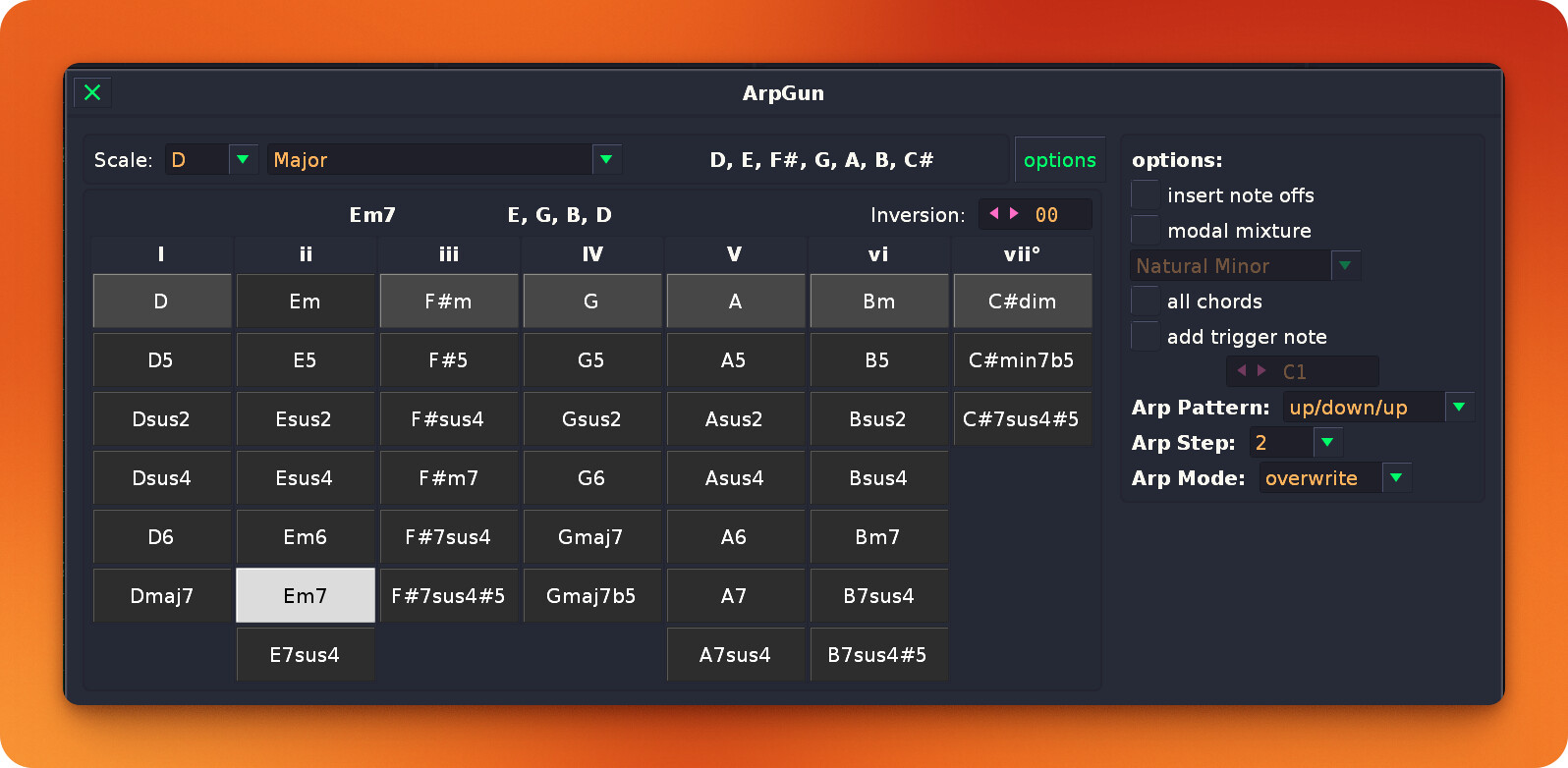
ArpGun is a powerful chord and arpeggio generation tool for Renoise, built upon the foundation of the legendary ChordGun. It allows you to quickly insert complex chords into your patterns and instantly transform them into a variety of arpeggiated patterns across successive lines.


Background

ArpGun is an evolution of ChordGun, originally developed by pandabot. While ChordGun focused on rapid chord entry on a single line, ArpGun extends this functionality to support rhythmic ā€œspacingā€ and melodic movement, making it a complete tool for both harmony and rhythm.


Key Features

  • Scale-Aware Chord Entry: Select a key and scale, and ArpGun provides a custom interface of valid chords for that scale.
  • One-Click Insertion: Insert chords directly into the Renoise pattern editor or play them via OSC for auditioning.
  • Integrated Arpeggiator: Transform any chord into a rhythmic sequence.
    • Patterns: Up, Down, Up/Down, Down/Up, Up/Down/Up, Down/Up/Down, Strum Up, Strum Down, and Dyads.
    • Step Sizes: Control the rhythmic spacing (1, 2, 3, 4, 6, 8, 12, 16, or 32 lines).
  • Multiple Write Modes:
    • Insert: Adds notes while shifting existing data.
    • Overwrite: Replaces existing notes in the target range.
  • Inversion Control: Easily cycle through chord inversions.
  • Custom Keybinding Support: Fully optimized for keyboard-heavy workflows with customizable shortcuts.

Installation

  1. Download the ArpGun_v0.9.0.xrnx file.
  2. Drag and drop the file onto the Renoise window.
  3. Restart Renoise (optional but recommended).
  4. Access the tool via Tools → ArpGun or by assigning a keyboard shortcut.

Usage Documentation

Basic Chord Entry

  1. Open the ArpGun interface.
  2. Choose your Tonic (Key) and Scale Type.
  3. Click any of the chord buttons to insert that chord at the current cursor position in the pattern editor.
  4. Toggle Edit Mode in Renoise to either insert the notes into the pattern or just play them.

Using the Arpeggiator

  1. Set the Arp Mode to ā€œinsertā€ or ā€œoverwriteā€.
  2. Choose an Arp Pattern (e.g., ā€œUpā€ or ā€œDyadsā€).
  3. Set the Arp Step (the number of lines between each note).
  4. Select a chord. ArpGun will now automatically spread the notes of that chord across the pattern based on your settings.

Keyboard Shortcuts

ArpGun is designed to be used without a mouse. You can bind these in Edit → Preferences → Keys (search for ā€œArpGunā€).

The default ā€œpower-userā€ bindings included in the plugin package (and used by the developer) are:

  • Shift + Option + 1-7: Insert Scale Chord
  • Shift + Option + [ / ]: Change Chord Inversion
  • Shift + Option + - / =: Change Chord Type
  • Shift + Option + 9 / 0: Change Scale Tonic
  • Shift + Option + , / .: Change Arp Pattern
  • Shift + Option + ; / ': Change Arp Step

*Note: On Windows/Linux, the ā€œOptionā€ key corresponds to the ā€œAltā€ key.

Next Steps/ ToDo

  • I have already received a request to explore adding euclidean rhythms to the arpeggiator, will explore
  • Testing for consistent performance and behavior, please share any bugs you find
  • Open to collaboration and discussion on it.

License

This project is licensed under the MIT License - see the LICENSE file for details.


Credits

  • Original ChordGun Logic: pandabot
  • Arpeggiator Extensions & UI: TrueSchool / Gemini CLI
7 Likes

Nice project mate! :slight_smile:

But i see no download?

happy tracking :slight_smile:

2 Likes

Right here bro:

4 Likes

Hello Mate!

Is it possible to integrate Renoise 6.2 API for Note playing too? I would prefer it over the old OSC Server method. It could be maked choosable about Tool preferences config.

happy tracking :slight_smile:

1 Like

I considered updating the whole plugin to be compatible with 3.5+ and then felt like I should keep it as backwards compatible as possible. Would it be better to just have it be as modern as possible?

1 Like

Definitely.

3 Likes

I see it a few more differentiated! Backward compatibility is a good thing! But supporting new technology is it too. So if you ask me that from the standpoint as a Renoise user i would answer you: I want both possibilitys!

From developer sight this is something more complex!

My personal Meaning as dev is… Let the user Choose!

Why?

Thats simple. The old code exist and is approved and stable. The work is done and time and effort was done for it! So you should not waste it. Use it!

New code must be developed with new work- and time effort in any case.

So the decision on the end is. How big are the cost’s of supporting both ways! As long the old API is working and only marked as ā€œdepreacatedā€ you can/should support it too. It is marked as ā€œEnd of live / intended for removalā€ you should not.

The cost in this case are fairly low. A checkbox in config dialog and the branching logic behind. If old code is good structured there should be no problem to integrate it. If the old code is ā€œSpaghetti codeā€ then the costs are higher.

The basic principle for compatibility is this: as long as the APIs are available and functioning, and the costs of implementing and maintaining are lower than the development costs of the old code, compatibility should be retained.

Only my suggestion!

happy tracking :slight_smile:

UPDATE: I have implemented the requested features:

It now includes:

  1. Renoise 3.4/API 6.2 Requirements: Explicitly states the need for Renoise 3.4+ so users know that OSC is no longer needed to play back/audition native notes.
  2. Euclidean Rhythms Documentation: Adds the Euclidean features to the list of capabilities and clearly explains how to access them using the new ā€œTiming Modeā€ contextual dropdown (Standard vs. Euclidean).
  3. Write Modes Clarified: Updated the old terminology (ā€œInsertā€) to the correct term (ā€œMergeā€) to accurately reflect what the dropdown does compared to Overwrite.
  4. Current Build Info: Updated the installation instructions to refer to the latest package file (ArpGun_v1.0.xrnx).
2 Likes

Thank you very much; this is a very useful tool for me.

Is there a way to disable the note preview using a keyboard shortcut or a mouse click? I couldn’t find one in Chordgun either. Right now, I stop the preview using the MIDI mapped ā€˜Stop’ button on my MIDI controller, but that also stops the entire song.

What do you mean by the note preview?

Click on a chord with the mouse while not in recording mode, the selected instrument plays it (preview, without inserting). But the chord doesn’t stop, it just continues playing. Would be nice if a second click on the chord or a right click would stop it.
Hm I have never done that. I’ll see what’s possible.

1 Like

Hi @shorty, I have implemented that change so now the chord button preview sounds cut off after 1 second. Much better, thanks! GitHub updated: GitHub - trueschool/ArpGun: **ArpGun** is a powerful chord and arpeggio generation tool for [Renoise](https://www.renoise.com/), built upon the foundation of the legendary **ChordGun**. It allows you to quickly insert complex chords into your patterns and instantly transform them into a variety of arpeggiated patterns across successive lines. Ā· GitHub

3 Likes

Wow, a problem that’s been going on for years was solved in just a few hours! It’s really much better now. Thank you so much!

I stay on older version for this time. thx for the tool mate.