New Tool (3.4.4 / 5.4) Custom Cursors (mouse pointer)

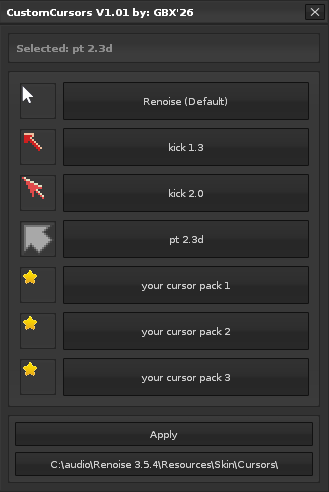
Custom Cursors v1.01

A simple tool for replacing Renoise cursors.
Just select a cursor pack, confirm your choice, and restart Renoise.
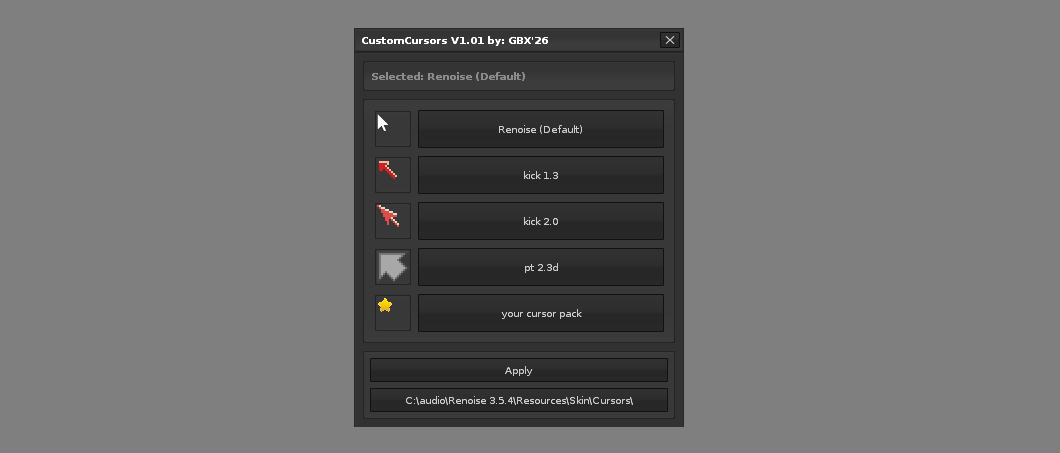
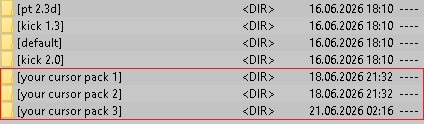
You can also add your own cursor packs. Locate the tool directory, for example:

C:\Users[your computer]\AppData\Roaming\Renoise\V3.5.4\Scripts\Tools\com.groovebox.CustomCursors.xrnx\cursors\your cursor pack

Place your cursor files inside the new folder, using the same file names and structure as the included Kick 1.3 or Kick 2.0 cursor packs.

That’s all. After restarting Renoise, your custom cursor pack should automatically appear in the list of available packs.

Custom Cursors v1.01 - Linux Setup

After installing the tool, you must grant write permissions to the Renoise cursor directory before using it for the first time.

In a terminal, first locate the Renoise cursor path:

find /usr/local/share -name "Default.cur" 2>/dev/null

Then run:

sudo chown -R $USER /usr/local/share/renoise-3.5.4/Skin/Cursors/

Replace “3.5.4” with your Renoise version if necessary.
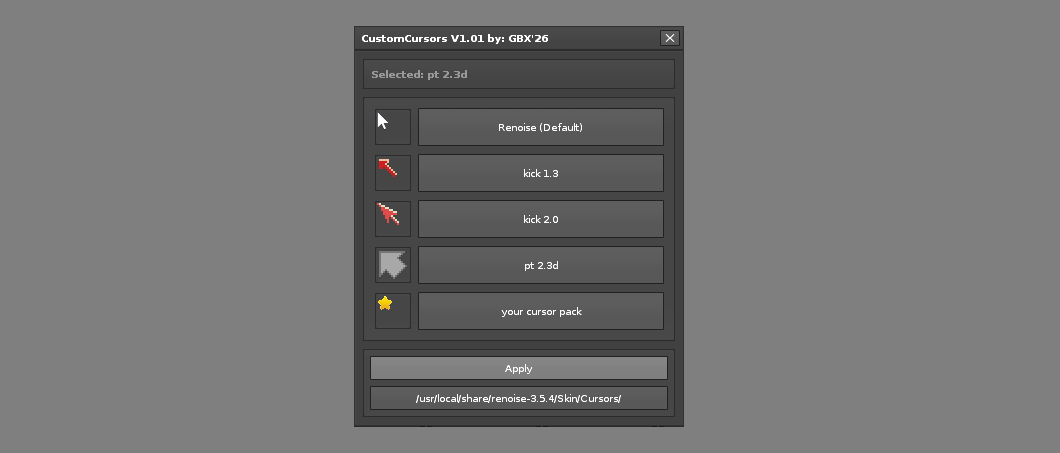
Once the command has been executed, the tool will automatically detect the cursor directory on first launch. Click OK and the tool is ready to use.

Note: The chown command only needs to be executed once. It does not need to be repeated after updating the tool.

Tested on:

– Windows 7 + Renoise 3.4.4
– Windows 10 + Renoise 3.5.4
– Arch Linux + Renoise 3.5.4
– macOS: not tested (and probably not working :slight_smile: )

– GBX –

com.groovebox.CustomCursors_v1.02.xrnx (91.7 KB)

6 Likes

works like a charm on MacOs - you have to open the renoise.app file (Show package contents) and then drag the Resouces folder to the Selection of the Renoisefolder-Dialog.

Didn’t even need to change writing permissions. :slight_smile:

Thank you GBX!

1 Like

Would you also include the original Fast Tracker II mouse cursors?
You can find them here in 8bitbusys ft2-clone repository:


1 Like

great! it’s very good news that it works on macOS :slight_smile:

…yeah. FT2 is the tracker I used between ProTracker and Renoise, and I remember those cursors :slight_smile:

Adding those animated cursors from FT2 might be difficult but possible.

I checked: animated cursors work in Renoise. On Windows, animated cursors have the *.ANI extension, and you just need to rename it to *.CUR and that cursor will work in Renoise as animated.

But I don’t know how this works for macOS and Linux. Cursors on Linux are in *.GIF format, and from what I’ve read macOS uses *.PNG, which makes things complicated.
Because you’d need to make three sets for each system separately, and for macOS each animation frame probably has to be in a separate file, since PNGs aren’t animated like GIFs.

I won’t hide it, I don’t have free time to test this on three systems separately.

But as I wrote in the first post. Cursor sets can easily be added by yourself. If you really want to, just add a folder in:

C:\Users[your name]\AppData\Roaming\Renoise\V3.5.4\Scripts\Tools\com.groovebox.CustomCursors.xrnx\cursors\your cursor folder

eg.:

Put the cursors in it and name them the way it’s done in kick 1.3 or pt2.3d, so they get assigned to the right events
restart Renoise. then the CustomCursor tool will automatically add them to the selection list.

best regards
-GBX-

1 Like

I had a look in a clean install of Renoise 3.5.4 and there are ONLY *.gif files in the Cursors directory. - I will give it a try sometime. Anyway thank you :slight_smile:

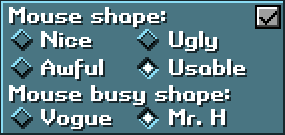
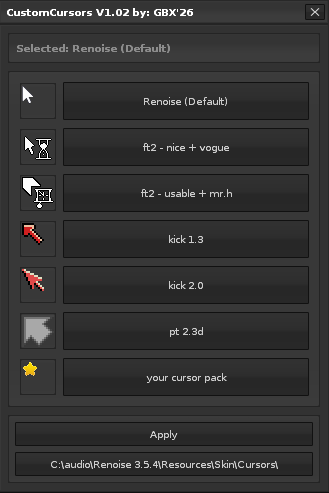
I decided to try adding these cursors. Two variants:

  1. ft2 - nice + vogue
  2. ft2 - usable + mr.h

It’s not perfect though. The cursors only animate on Windows. On Linux they’re static, even though the GIF is animated. Still, I decided to leave it as is.

While I was at it, I also fixed “kick 1.3”, which had a background issue.

What happens on macOS - no idea :slight_smile:

Cheers,
-GBX-

com.groovebox.CustomCursors_v1.02.xrnx (91.7 KB)

1 Like

You we’re right about animations on MacOs. - On my new Machine i can’t seem to trigger the Hourglass cursor, because it’s just too fast. :sweat_smile: - so i set it as the default.gif and it’s stuck at the first frame. - Thank you anyway :slight_smile:
ft2BusyHourGlas