Simple Transients 1.0.3
com.phaos.SimpleTransients.xrnx (26.3 KB)
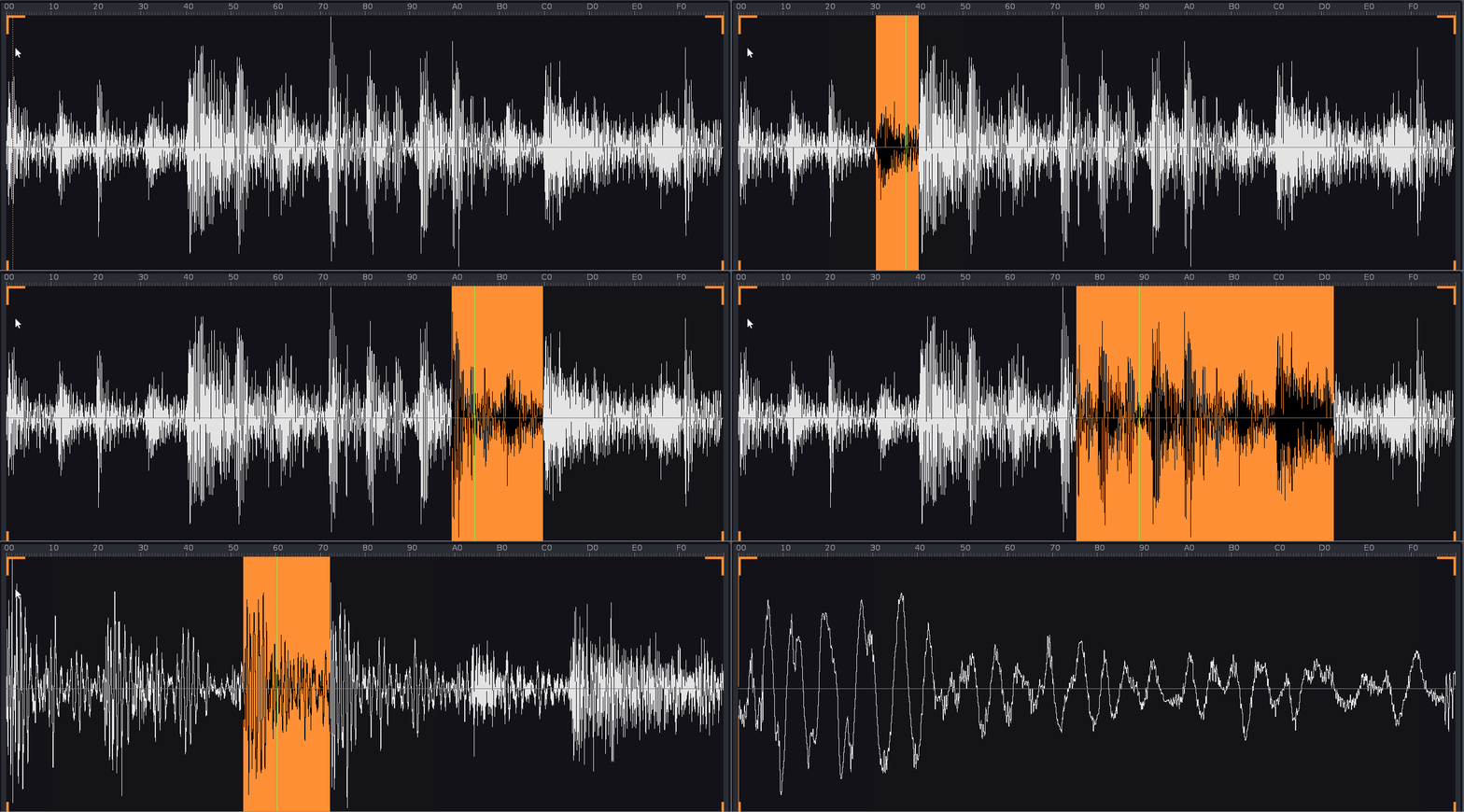 Fully keyboard-driven transient detection for the sample editor. It finds the hits in a sample, whether drum hits in a loop or words in a recording. You can then step from hit to hit, move the selection’s edges transient by transient, and crop single hits or parts of loops. A panel (keybind or Tools menu) sets the detection sensitivity (%) and amplitude threshold (dB).
What’s a transient? A short, high-amplitude burst of sound with a sudden onset, like a drum hit, a speech consonant, or any other such racket!
Justification for this tool:
I have to use Pro Tools every day for editing work, and one of the features I can’t live without now is “tab to transient.” In Renoise, I seldom use the Slice function to get my cuts from a loop, and often I want only one or two sounds from it (for example, a kick, hat and snare). This tool lets you navigate and snap the cursor and selection to those hits, so cuts land accurately without zooming in to find your mark. Pretty groovy, I think.
Features and whatnot:
Stepping and selecting
- Next / Previous Transient: moves the cursor to the next or previous hit. With Wrap around on, going past the last hit returns to the start.
- Selection End to Previous / Next: moves the selection’s end out or in by transient. With nothing selected, Next selects the hit at the cursor and Previous selects the one before it.
- Selection Start to Previous / Next: the same for the selection’s start.
- Both Edges Out / In: adds or removes one transient on each side.
- A selection ends one frame before the next transient, so it loops cleanly. A plain step lets go of the selection.
- Renoise’s own Play Selection and Copy to New Sample / Instrument work on these selections.
Cropping
- Trim Left: deletes everything before the cursor.
- Trim Right: deletes from the cursor on, including the cursor’s hit.
- Trim to Selection: keeps only the selection.
- With a selection, left and right mean left and right of it.
Prehear
- Play: plays the selection, or from the cursor to the end.
- Stop.
- Auto-prehear: plays each hit as you step.
- Plays on the Master track or the selected track.
Detection settings (Panel)
- Find Transients: analyses the sample again. This also happens automatically.
- Sensitivity (0-100%): how small a jump in level counts as a hit. Higher finds more hits.
- Threshold (6-90 dB): ignores hits this far below the loudest part. Higher lets quieter hits through.
- Min gap (10-2000 ms): the minimum distance between transients. The stronger hit wins. Raise it for speech.
- Snap to Onset or Peak: Onset is the start of the hit, which is the place to cut. Peak is its loudest point.
- Zero crossings: moves onsets back to a zero crossing, so cuts don’t click.
- Snap selection: selection edges move by transient. When off, they move in fine steps.
- A status line shows the sample name, its length, the transient count, and the cursor or selection.
The panel is fully keyboard-driven: Up/Down moves between controls, Left/Right changes a slider or switch, Home/End jumps to a slider’s minimum or maximum, digits type a value, Enter presses a button, and Esc closes it.
Options: wrap around at the last hit, scroll the editor with the cursor, auto-prehear, and prehear output (Master or Track).
Keys and MIDI
- Bind keys in Preferences > Keys > Sample Editor > Simple Transients. A tool can’t set default keys, so the Help window suggests a free set and checks your bindings for clashes.
- Suggested: Tab / Shift-` for Next / Previous, Shift-Tab for Selection End to Next, Ctrl-Alt-Left/Right for Selection End, Ctrl-Alt-Shift-Left/Right for Selection Start, and Ctrl-Alt-Up/Down for Both Edges Out/In.
- Also bindable: Find Transients, Sensitivity up/down (5% steps) and Threshold up/down (3 dB steps).
- MIDI mappings: Toggle Panel, Next Transient, Previous Transient, Selection End to Next Transient, and Find Transients.
Analysis runs in the background, and results for the last 8 samples are cached. A Help window is available from the panel button, the Show Help binding or the Tools menu.