🎛 Zorgan Tools: PADs or Buttons to Controll Tracks v4.13, controll center for Tracks, Instruments with MIDI channel, Send Tracks dual layer

zorgan.MIDIcontrollPADs.pad8.xrnx (9.7 KB)

:musical_keyboard: MIDI Controll Pad Tracks InstrumentsAuthor: Roman (zorgan)Version: 1.0Platform: Renoise 3.x

This tool is designed for MIDI controllers with pads (primarily tested on the Novation Impulse 25) that send CC messages with velocity. It allows for seamless project navigation, simultaneous track and instrument switching, and mix control (Mute/Solo) without needing to touch the mouse.

:rocket: Key Features

Triple-Logic Pads: 1. Select track & instrument 2. MUTE / unMUTE 3. SOLO

Soft Press (Low Velocity): Selects the target track and the assigned instrument simultaneously.

Hard Press (High Velocity): Toggles the track Mute/Unmute state.

Solo Mode: Holding any pad for more than 1 second triggers Solo for that track. To unmute you can use the button on your midi controller. You can find it in MidiMapper: Track Muting / Unmute All.

Dual Pad Sets: Support for two banks of pads (control up to 16 tracks or more).

ModWheel Pattern Scroll: Use your Modulation wheel as a precision pattern scroller with non-linear velocity.

Smart Selection: Works with standard tracks as well as FX or Send tracks.

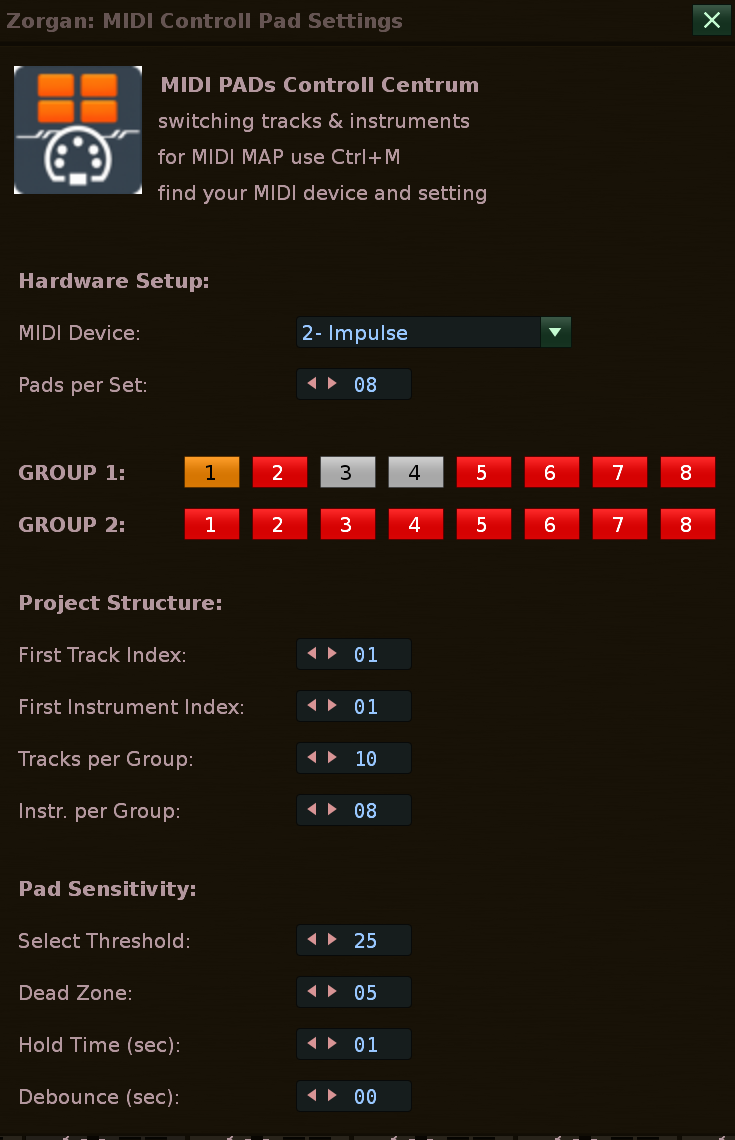
:hammer_and_wrench: Settings (GUI)Access the configuration via: Tools → MIDI Controll Pad Tracks Instruments…

Hardware Setup:

MIDI Device Name: Enter your controller’s name (e.g., “Impulse”). This name will appear as a category in the Renoise MIDI Mapping list.

Pads per Set: Number of physical pads on your device (e.g., 8).

Project Structure:

First Instrument Index: Starting index of your instrument list (usually 1).

Tracks per Group: Number of tracks in a group (for calculating Set 2 offsets).

Pad Sensitivity:

Select Threshold: Velocity limit for the “Select” action. MUTE/ unMUTE

Dead Zone: Buffer between Select and Mute actions.

Hold Time: Duration to hold for the Solo function.

Debounce: Protection against mechanical double-triggering.

:keyboard: How to Map in RenoiseOpen the Tool GUI and set your MIDI Device Name (e.g., “MyImpulse”).

Press Ctrl + Shift + R to reload the tool.

Open Renoise MIDI Mapping window (Ctrl + M).

In the mapping list, look for the category matching your MIDI Device Name.

Assign your hardware:

Assign pads to entries like MyImpulse:Set 1:Pad 1.

Assign your modulation wheel to MyImpulse:Pattern Scroll ModWheel.

:warning: Important InstructionsWhenever you change the MIDI Device Name or the Pads per Set in the GUI, a Tool Reload is required (Ctrl + Shift + R) to refresh the names in the MIDI mapping list.

:package: InstallationPlace the tool folder into your Renoise user Scripts directory.

Alternatively, compress the folder into a .zip file, change the extension to .xrnx, and drag & drop it into the Renoise window.

Author’s NoteThis tool was built to streamline live workflows and studio sessions. I hope it enhances your creative process as much as it has mine!

2 Likes

Major Release: MIDI PADs Controll Centrum (Completely New Version 2.7)

Hi everyone,

A brand new version of MIDI Controll Pad Tracks Instruments is finally out! So many fundamental things have changed under the hood (including a completely new reactive GUI engine) that I decided to release it as a brand new, standalone version.

:warning: Important note for current users:

If you have the older version installed, I highly recommend uninstalling the old version first before installing this new one. From this release onwards, all future updates will be handled smoothly via the standard Renoise Tools updater.

:control_knobs: What does this tool do?

For those new to the tool, it’s designed to give you seamless, mouse-free project navigation and mix control using any velocity-sensitive MIDI pad controller. Here is a quick summary of the main features:

  • Triple-Logic Pads: A single pad handles 3 different actions based on your touch.

  • Soft Press: Instantly selects the target track and simultaneously activates the assigned instrument.

  • Hard Press: Toggles the track’s Mute / Unmute state.

  • Solo Hold Mode: Hold a pad for a defined duration to activate Solo for that track.

  • New Reactive GUI: The tool’s interface now provides real-time visual feedback, changing pad colors (Orange, Green, Red) to mirror your DAW’s Active, Solo, or Mute states.

  • Mapping Assistant: A new built-in interactive guide makes MIDI mapping (Ctrl+M) incredibly fast and intuitive.

  • ModWheel Scroll: Repurpose your modulation wheel into a precision, non-linear pattern scroller.

You can download the .xrnx file attached below. Try it out and let me know how it improves your workflow!

Cheers,

Roman (Zorgan)

:musical_keyboard: Renoise Tool Development Zorgan: MIDI PADs to Controll Tracks

Author: Roman Prucha (Zorgan)
Platform: Renoise 3.x
Version: 4.03 (Strict GUI Validation & Failsafe Gatekeeper)

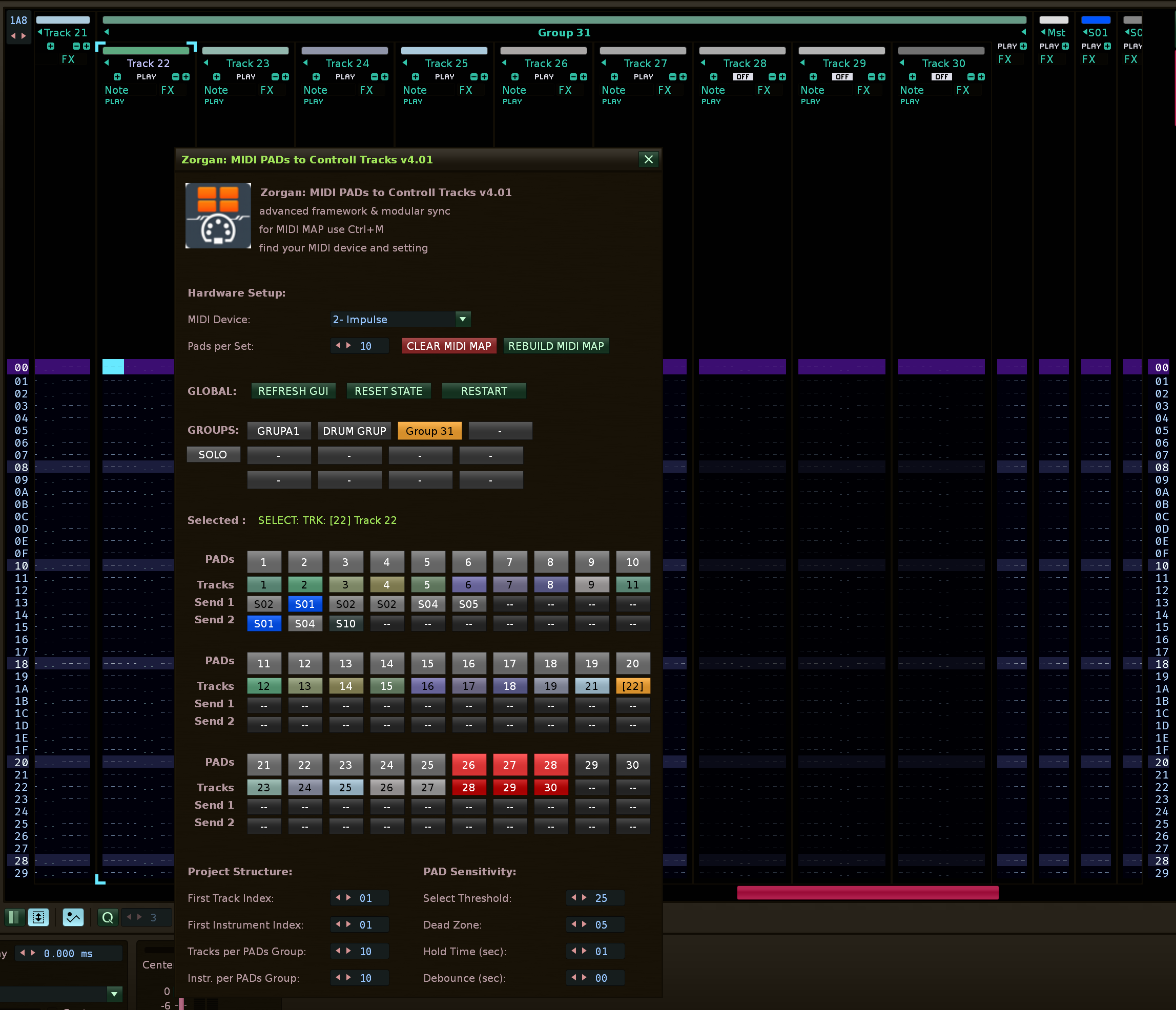
The tool’s GUI is not just a visual mirror of your controller; it is a fully-featured control panel. Each hardware block (e.g., 10 pads) has its corresponding layers in the GUI:

MIDI PAD Button (Hardware Trigger)

The primary button representing the physical MIDI Pad, utilizing Triple-Logic :
- three actions on one pad based on velocity and hold duration
A. Soft Press  PAD (Low Velocity): Instantly selects the target track and automatically switches to the corresponding Instrument.
B. Hard Press PAD  (High Velocity): Acts as a MUTE / ACTIVE toggle.
C. Hold PAD (Long Press): Holding the pad (e.g., for 1 second) activates SOLO mode for that track.

Power OFF Track on PADs buttons :

And Control mouse click on button PAD in GUI
 >  If a track is completely turned off (Power OFF lock safe mode) or its parent Group is turned off, the button turns red. 
    Otherwise, it dynamically reacts to current states.

TRACK Button :

 click on track buttons = Select TRACK - name track view Status & Navigation
Used for quick visual feedback and mouse navigation:
Displays the track number, and you also see the name of the track, or send track, above the group of buttons, Selected: name
Clicking it instantly jumps to that track in Renoise.

SEND Buttons (Layer 1 and 2):

Each channel dynamically scans the Renoise project to find its Send routings (e.g., Reverb, Delay):
Displays exact destination names (e.g., `S01`, `S02`).
Clicking a Send button in the GUI instantly moves you to the corresponding Send track in the mix, extremely speeding up effect tweaking.
If the source track is muted (Mute/Off), the Send buttons intelligently turn red, indicating that no signal is flowing into them.

SOLO TRACK: Access to double-clicking on TRACK, SEND 1 SEND 2.

    You can directly double-click on another TRACK, even SEND TRACK than the current SOLO, switch SOLO by double-clicking directly.
    It remains if I double-click on the same TRACK, TRACK SEND disable SOLO.

SOLO GROUP : function for quick “solo auditioning” (switching solos between groups) when playing live or mixing.

     If you already have an active SOLO Group, just click between Groups and the SOLO Group will move between Groups.

Colors in buttons * Button color reacts to the state:

 **Orange** = currently selected track and send track, or Selected Group. 
 **Yellow** = SOLO
 **Red** = Mute/Off

Display by color and button type and their function: In the PAD button:

 only the TRACK OFF state is displayed, you activate it by clicking on the button and
 it is above all and is not affected by the MUTE or SOLO state.
 This is suitable for situations when you do not need the TRACKs to affect you at the same time when working with the song.

In the TRACK button:

 both the MUTE and TURN OFF states are displayed ...
 MUTE is activated when SOLO. TRACK and SEND Tracks that are linked by selecting SOLO TRACK are lit yellow.
Here, you activate the SOLO function by double-clicking. You can also move to another TRACK, SOLO by double-clicking.

In the SEND 1 and SEND 2 buttons:

 the SOLO state is displayed again in yellow, or the MUTE state in red.
If you click on the SEND button once, it means select SEND TRACK.
If you click on the SEND button twice,
SOLO is selected so that all TRACKs linked to the SEND TRACK on which you activated the SOLO function run.
Again, you can double-click to switch between SEND TRACK, SOLO.

In The GROUP button:

Allows single click = select Group Track. double click button = Group Off, all Tracks in Group is POWER Off .
Power Off  is above all and is not affected by the MUTE or SOLO state.
You can activate Mute on multiple Group members in this way.
If SOLO and GROUP are active, clicking between GROUP switches SOLO GROUP.

Change log & fix

–- Version: 4.03 Quick double-click switching between Track, Send Track activates SOLO, or moves SOLO, or cancels SOLO. For Group.
I can click once between Group and if SOLO is active, I switch SOLO between GROUP.
– Version: 4.01 (Strict GUI Validation & Failsafe Gatekeeper) fix for no Send tracks in tracks and pads buttons– Version: 4.03 Quick double-click switching between Track, Send Track activates SOLO, or moves SOLO, or cancels SOLO. For Group, I can click once between Group and if SOLO is active, I switch SOLO between GROUP.

– Version: 4.01 (Strict GUI Validation & Failsafe Gatekeeper) fix for no Send tracks in tracks and pads buttons

  • **v4.00 Send tracks are no longer crammed under the PAD buttons, as are Master tracks and Group tracks, which have their own control fields…

  • **v3.98 (Smart Mapping and UI Adjustment):
    Smart PAD Mapping: PADs now automatically skip Group tracks. 10 physical PADs now equal exactly 10 playable instruments/tracks, without Groups taking up valuable controller space.
    Engine Restart: Added a hardware “RESTART” button to instantly reinitialize all API notifiers and MIDI mappings without having to reload the entire instrument.
    Status UI Improvements: Selected track information has been moved to a dedicated “Selected :” line under the Groups section, allowing full visibility of even very long track names without truncating the GUI.

  • v3.96 (Ultimate Masterpiece): Implemented “Backward Scan”. The Group engine now precisely detects block boundaries matching the hardware (Track 10 commands tracks 1-9) and protects the Master and Sends from being swallowed.

  • v3.95 (Mathematical Blocks): Complete detachment from crashing __eq comparisons in the Renoise API. Detection is handled exclusively via mathematical indices and an optimized depth cache. O(1) performance leap for the GUI.

  • v3.9x (Split Solo Architecture): Native separation of SOLO button logic. Groups are soloed “virtually” (via Mute logic) including propagation to Sends, while regular tracks use the Renoise engine.

  • v3.8x: SOLO button detached from the header, added Hard Reset (RST) to safely revive the entire mix. Reactive colors throughout the GUI.

:musical_keyboard: Zorgan: MIDI PADs to Controll Tracks

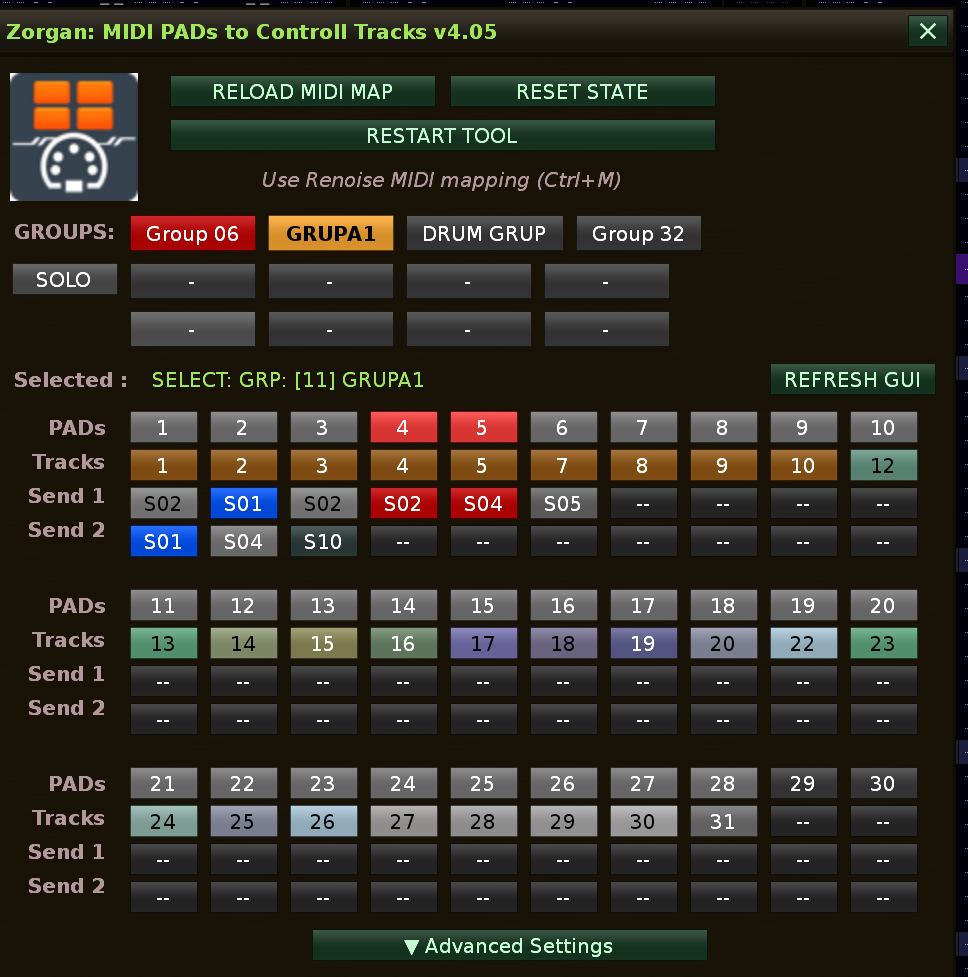
Version: 4.05 (Clean GUI, Root Mapping, Smart Encoders & Parent-Child UX)

:light_bulb: What these changes bring (Overview)

1. Ultimate Workspace Efficiency (Zero Clutter) The user interface has been ruthlessly compressed and cleaned. By removing unnecessary texts, shrinking button heights to match standard rows, and hiding “set-it-and-forget-it” parameters behind the new Advanced Settings toggle, the tool now takes up significantly less screen real estate while looking much more professional.

2. Intuitive Visual Feedback (Parent-Child UX) Navigating complex projects is now effortless thanks to the new two-tier highlight system. If you select a Track, it glows bright orange while its parent Group glows dim orange. Conversely, selecting a Group highlights it brightly while showing all its child tracks in a dim orange. You instantly know your exact context in the mix without reading a single label.

3. Universal Hardware Scrolling Whether you own a classic MIDI keyboard with a standard ModWheel or a modern controller with endless rotary encoders, the tool now fully supports both. The new “Smart Universal Decoder” understands various relative MIDI formats, ensuring perfectly smooth pattern scrolling without ever hitting a mechanical “dead end”.

4. Bulletproof Engine Stability By wrapping the background polling loops and timers in protective asynchronous hooks, the script is now 100% immune to crashing during project loading, closing, or rapid song switching. The engine silently waits for Renoise to finish its structural changes before resuming communication.

:scroll: Changelog for v4.05

Version: 4.05 (Clean GUI, Root Mapping, Smart Encoders & Parent-Child UX)

  • Change Log 4.05
    • [REMOVED] Obsolete MIDI Device selection from the GUI. MIDI mapping is now exclusively and safely handled via Renoise native mapping (Ctrl+M).

    • [MOVED] Core system MIDI mappings (e.g., “Show GUI”, “Pattern Scroll”) were moved from the “Global” subfolder directly into the tool’s root mapping folder for faster access.

    • [ADDED] Pattern Scroll Endless Encoder: A brand new, smart universal decoder mapping for infinite rotary knobs (automatically handles different relative hardware standards).

    • [ADDED] Pattern Scroll Absolut MIDI controll: Rebuilt mapping for classic ModWheels and absolute faders (0-127 range mathematically spread across the pattern length).

    • [ADDED] Advanced Settings Toggle: Structural and sensitivity settings are now cleanly hidden inside a collapsible menu at the bottom of the window.

    • [IMPROVED] Ultra-Compact GUI: Eliminated empty spaces and reduced PAD button heights (from 24px to 16px) to perfectly align with Track and Send buttons.

    • [IMPROVED] RELOAD MIDI MAP: Combined the Clear and Rebuild functions into a single, safe button with a protective confirmation prompt.

    • [IMPROVED] Parent-Child UX Highlight: Introduced an intelligent color-dimming visual feedback system. Directly selected items glow bright orange, while their respective parent group or child tracks glow in a dimmed orange color.

    • [FIXED] Resolved a critical std::logic_error crash during song transitions (loading/switching projects) by implementing pcall failsafe hooks in the background idle loop.


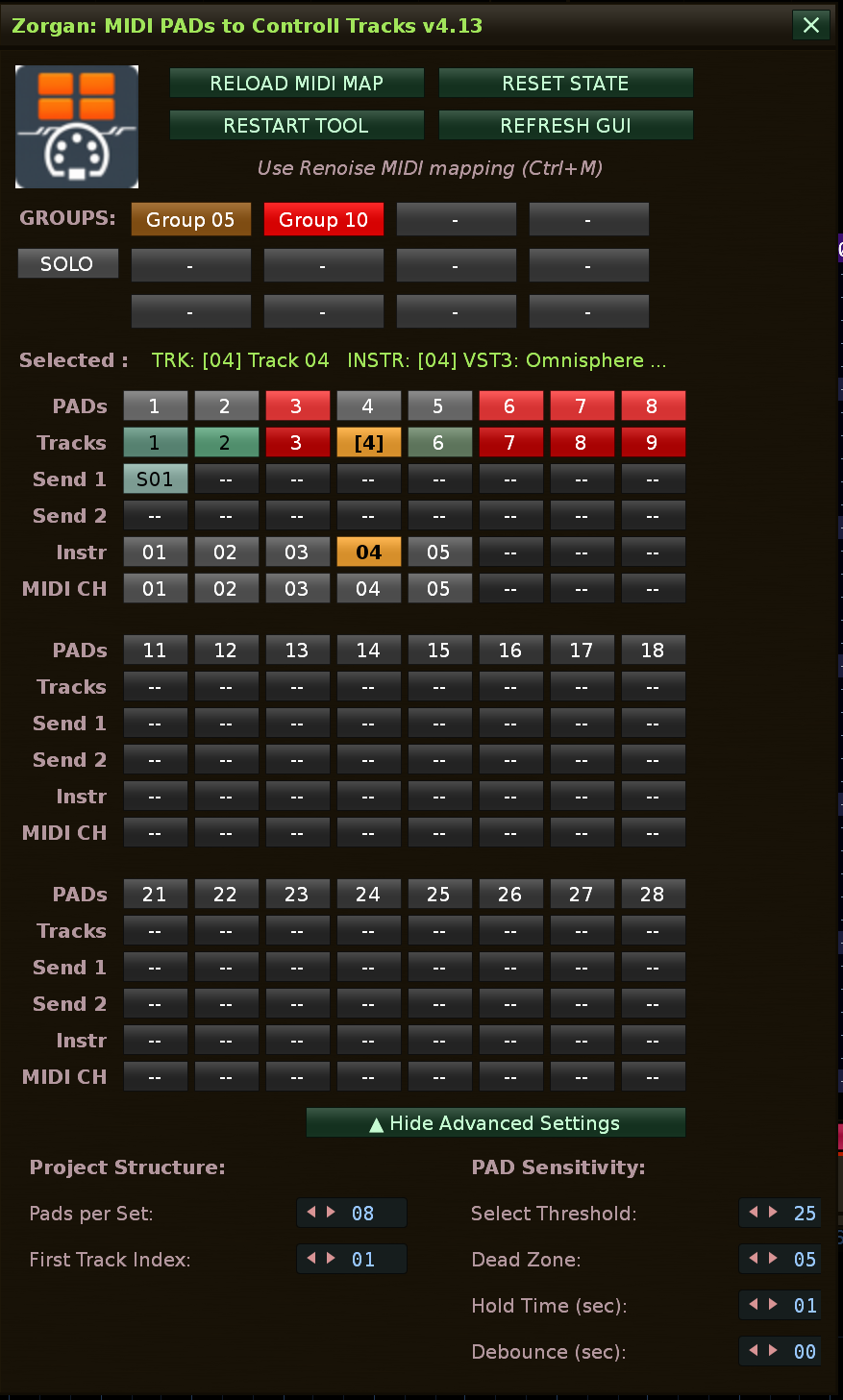
Hi everyone! I’m excited to share version 4.13 of Zorgan: MIDI PADs to Controll Tracks. This tool is designed to turn your dynamic MIDI pads (e.g., Novation Impulse) or standard MIDI buttons into a lightning-fast control center. It allows for lightning-fast project navigation, simultaneous track and instrument switching, and full mix management (Mute / Solo / Power Off) absolutely without using a mouse. The newest 4.1x update introduces a revolutionary Native Project Scan Engine—it automatically detects your real routing, assigned instruments, and VST MIDI channels by reading your actual pattern data and plugin properties, completely dropping the need for rigid mathematical offset configurations.

You can also control everything from the GUI tool by clicking on buttons, switching tracks, selecting Group tracks. Instantly get an overview of which track has which Send Track or Instrument assigned, including MIDI channel.

Grab it below and let me know how it improves your live sets and mixing workflows!

Change log
  • v4.13 (Zero FOUC GUI): Implemented a pre-render core engine. The GUI now calculates all visibilities, assignments, and colors before drawing the window, completely eliminating the “Flash of Unstyled Content” when opening the tool.
  • v4.12 (Standard MIDI Button Support): Upgraded the trigger logic. Mappings now natively support standard non-dynamic MIDI buttons (reading CC value 127 as a strict Select Track/Instrument command) alongside velocity-sensitive pads.
  • v4.11 (GUI Width Optimization): Re-engineered the button layout and Status Bar limits to ensure the GUI perfectly hugs the 10-pad column width without stretching.
  • v4.09 - v4.10 (Smart Instrument & MIDI CH Detection): Replaced rigid mathematical offset calculations with the new Native Project Scan Engine. The tool now dynamically reads assigned instruments from pattern data and precisely detects VST Plugin Channels. Added the new Instr and MIDI CH rows to the GUI. Removed obsolete project structure settings.
  • v4.06 - v4.08: Unified the Visibility Engine and introduced foolproof Notifier management to prevent memory leaks during rapid GUI toggling. Restored safe GUI Pad mute functionality.
  • v4.05: Cleaned GUI, moved mappings to Root, added Smart Encoders (Endless/Absolute Pattern Scrolling), and introduced Parent-Child UX dimming highlights.